Waitlists, free resources and downloads
Collect emails with a waitlist, unlock a free resource link, or deliver a file after sign-up.
These three formats have no questions: the sign-up is the whole experience, so the builder skips straight from Settings to the Thank-you screen.
| Format | What visitors get |
|---|---|
| Waitlist | A spot on your list, with an optional live count of people who joined |
| Resource Unlock | A hidden link (Google Drive, Notion, Dropbox, PDF…) revealed after they enter their email |
| Digital Download | A file you upload (PDF, ZIP, ePub, image, up to 5 MB); the private download link expires after an hour |
Steps
Add the format
In the library, add Startup Waitlist, Resource Unlock or Digital Download from the Convert category.
Where: Experiences → Discover → Convert
Set up the offer
Waitlist: set the Button label and turn on Show how many people have joined. Resource Unlock: paste the Link to the file or page and name it. Digital Download: upload the file, name it and list up to three things inside.
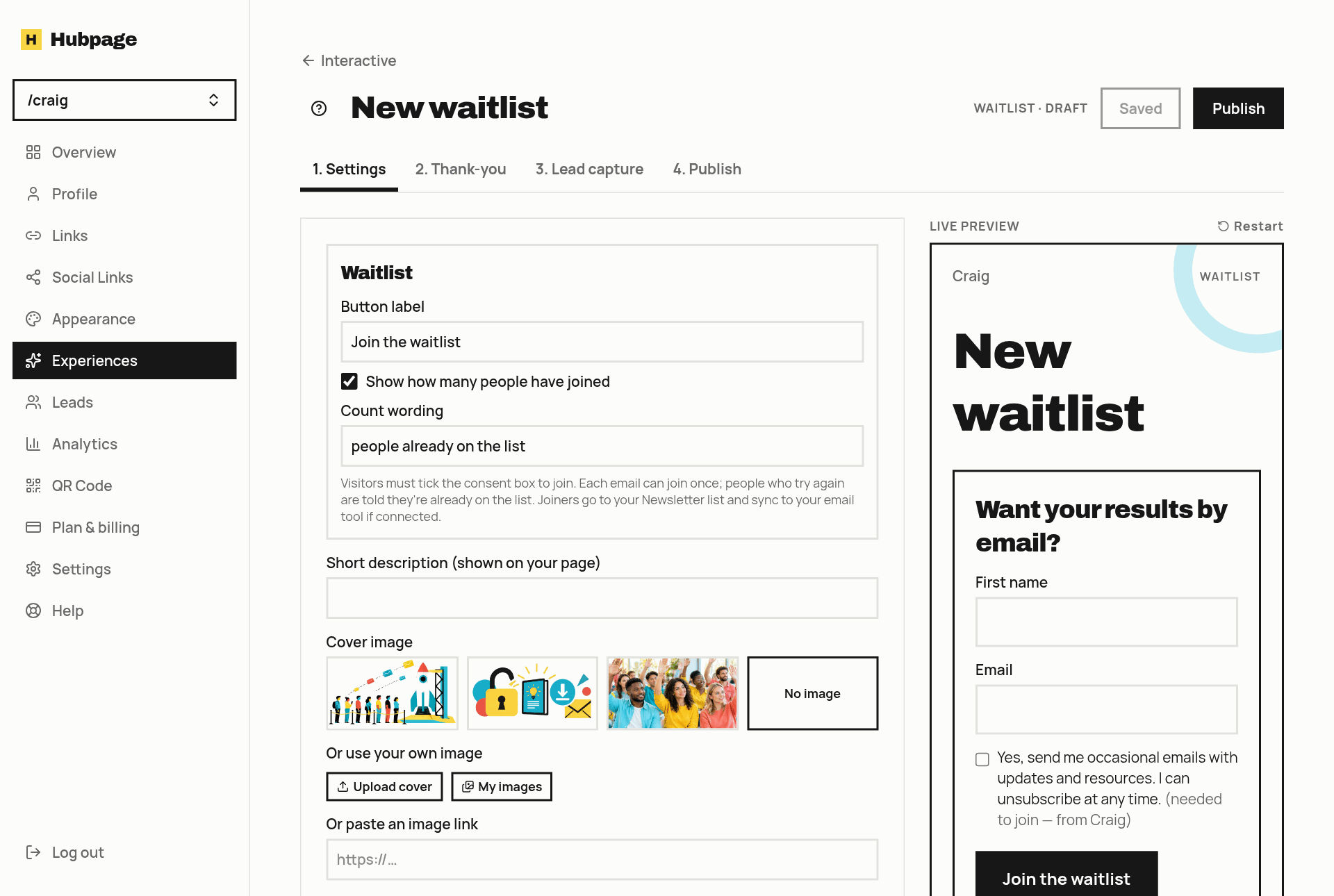
Where: Builder → 1. Settings
Write the thank-you screen
In Thank-you, add a title and a button that sends people somewhere next, such as your newsletter or a related offer.
Where: Builder → Thank-you
Publish and share
Publish, then use Share to social from My Experiences. Everyone who signs up lands in Leads.
Waitlists need the consent box ticked to join, and each email can join once. For downloads and resource unlocks, marketing consent is optional; the file unlocks either way.
Where: Builder → Publish
Was this page helpful?