Build a calculator
Give visitors a personalised number, such as cost, savings or ROI, from their own inputs and a formula you write.
Visitors enter numbers; your formula turns them into a result. They never see the formula.
Steps
Add your inputs
In 2. Inputs, add a Number, Slider or Single choice input for each value. Give each a short Formula name (letters, numbers and _), such as hours or rate, and set minimum, maximum and format (number, currency or percent). For single-choice inputs, each answer has a Value.
Where: Builder → 2. Inputs
Write the formula
In 1. Settings → Calculation, write a Formula using your input names, for example hours * rate * 52. You can use + − * /, ^, brackets, and min(), max(), round(x, decimals), floor(), ceil() and abs(). Percent inputs count as fractions (20% = 0.2).
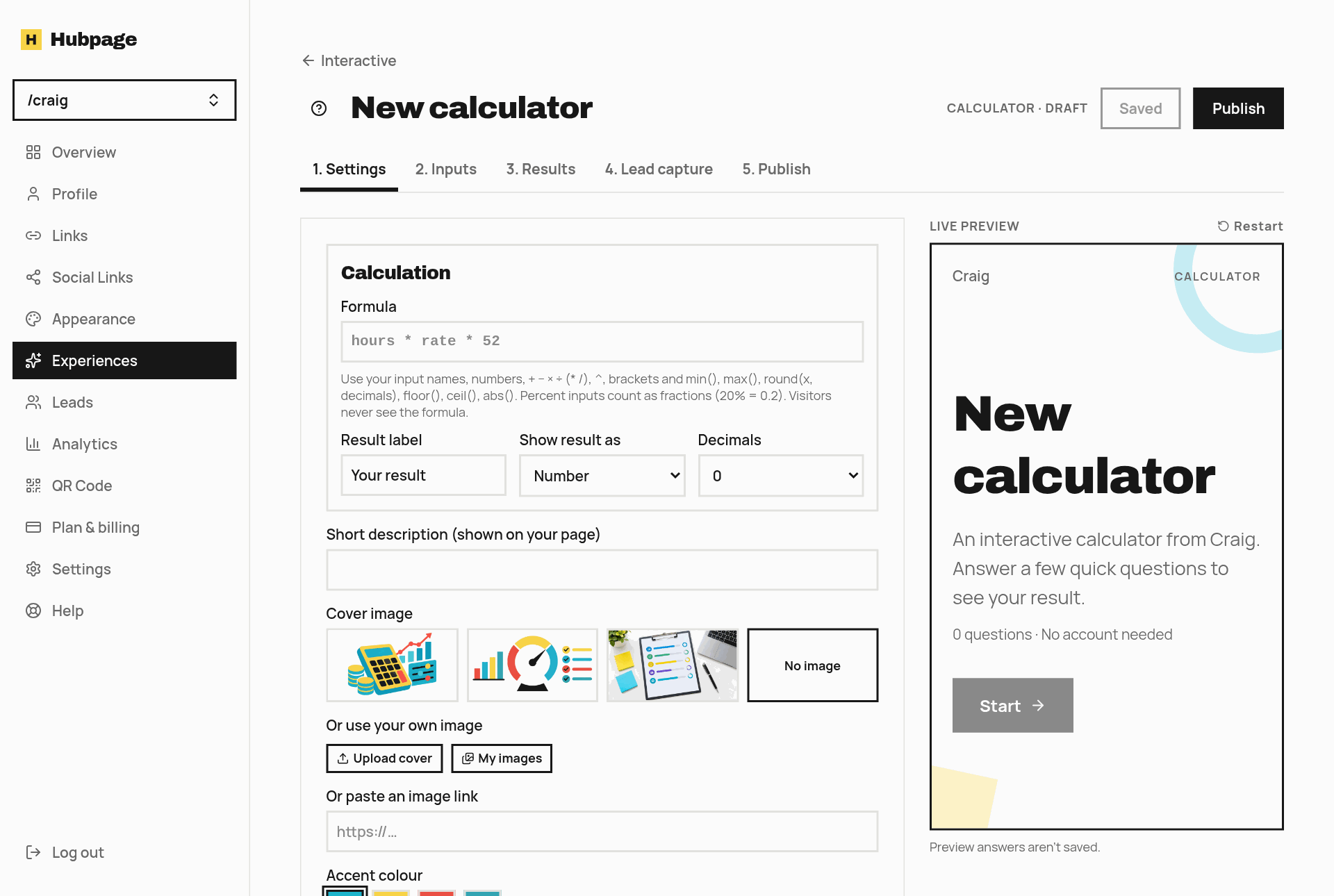
Where: Settings → Calculation
Label the result
Set the Result label (for example Yearly cost of manual work), Show result as number, currency or percent, and the number of decimals.
Where: Settings → Calculation
Create result ranges
In 3. Results, set a From value and To value for each result, leaving one empty for open-ended. Use them to send small results to a free guide and large ones to a call.
Where: Builder → 3. Results
Publish
Test a few numbers in the preview, then publish.
Where: Builder → 5. Publish
Was this page helpful?