Build a quiz or scorecard
How results are picked in personality quizzes, scorecards, knowledge challenges and product finders, and how to set them up.
The four quiz formats differ in one thing: how the result is chosen.
| Format | How the result is picked |
|---|---|
| Personality Quiz | Each answer points at a result; the result with the most points wins. |
| Product Recommendation Quiz | Same as personality, but each result is a product or service with a buy or learn-more button. |
| Assessment / Scorecard | Answers carry points; the result is picked by a score range (points earned ÷ maximum). |
| Knowledge Challenge | Answers are right or wrong; the result is picked by percentage correct. |
Steps
Create the results first
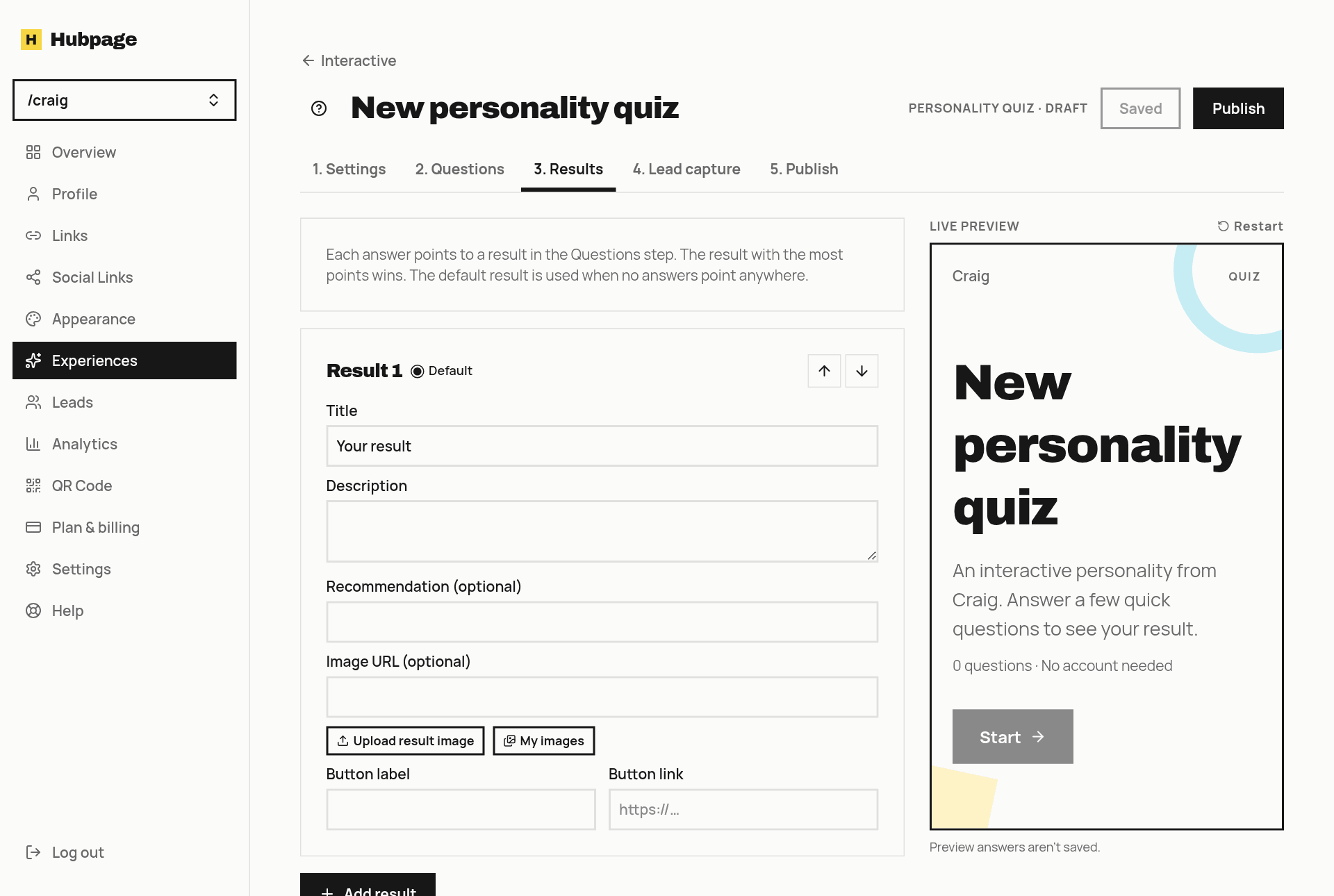
In 3. Results, add one result per outcome (for example The Broadcaster, The Essayist). For scorecards and challenges, set a From % and To % range for each, such as 0–40, 41–75, 76–100.
Where: Builder → 3. Results
Write the questions
In 2. Questions, add five to eight questions. Fewer questions means more people finish.
Where: Builder → 2. Questions
Connect answers to results
Personality and product quizzes: use the → result menu next to each answer. Scorecards: give each answer Points. Knowledge challenges: tick Correct on the right answer. You must link at least one answer to a result before you can publish.
Where: Questions → answers
Add a next step to each result
Give every result a Button label and Button link: book a call, buy the product, read the guide. Product finder clicks show up in Insights.
Where: Results → Button
Choose when to capture the email
Before showing the result gets the most leads; After the result gets the most completions. Seeing a result never depends on ticking the marketing consent box.
Where: Builder → 4. Lead capture
Test in the preview, then publish
Take the quiz in Live preview, select Restart to try other paths, then publish.
Where: Live preview → Restart
Was this page helpful?