Booking and contact forms
Let visitors send you a message, or leave their details and then book a time on your Calendly or Cal.com calendar.
Contact Form collects an email and a message. Book a Call collects details first, then shows your scheduling page. Both put the person straight into Leads.
Steps
Add the format
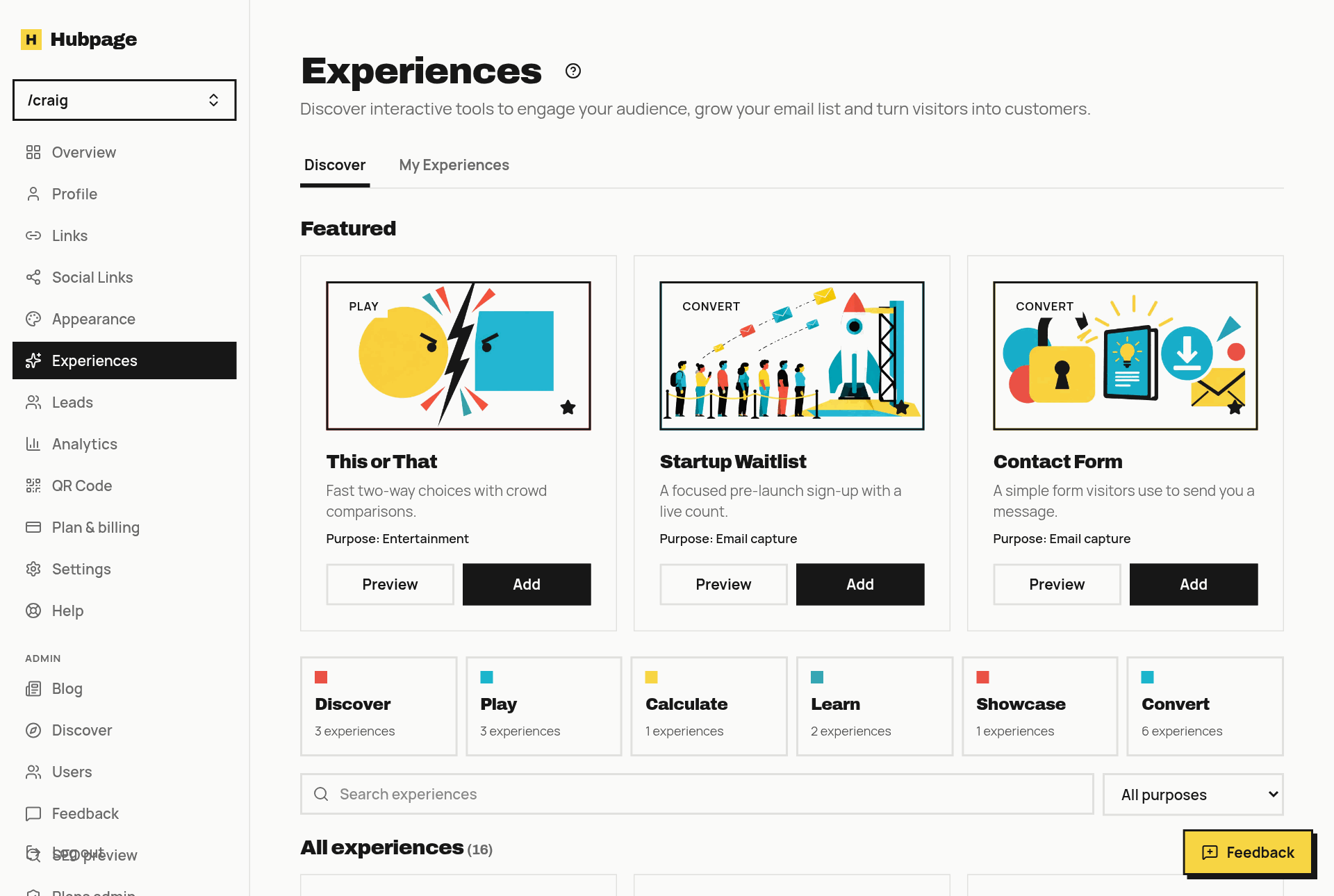
Add Contact Form or Book a Call from the Convert category, or start blank.
Where: Experiences → Discover → Convert
Booking: paste your scheduling link
In 1. Settings → Booking, paste your Calendly, Cal.com or Google Calendar booking link. Turn on Show the calendar right on the page to embed it.
Where: Settings → Booking
Contact: label the form
In 1. Settings → Contact form, set the Message box label and Button label.
Where: Settings → Contact form
Choose the fields
In 4. Lead capture, add first name, last name, company or custom fields such as Phone or Postal code.
Where: Builder → 4. Lead capture
Publish and feature it
Publish, then add a featured link on your page pointing at the experience's live link so it is the first thing people see.
Where: Builder → Publish
Was this page helpful?