Website & Online Presence
How to Create a Link in Bio Page That Helps People Take Action
A practical guide to choosing your links, designing your page, and giving visitors a clear next step.
By Hubpage Editorial Team · October 31, 2026 · 6 min read
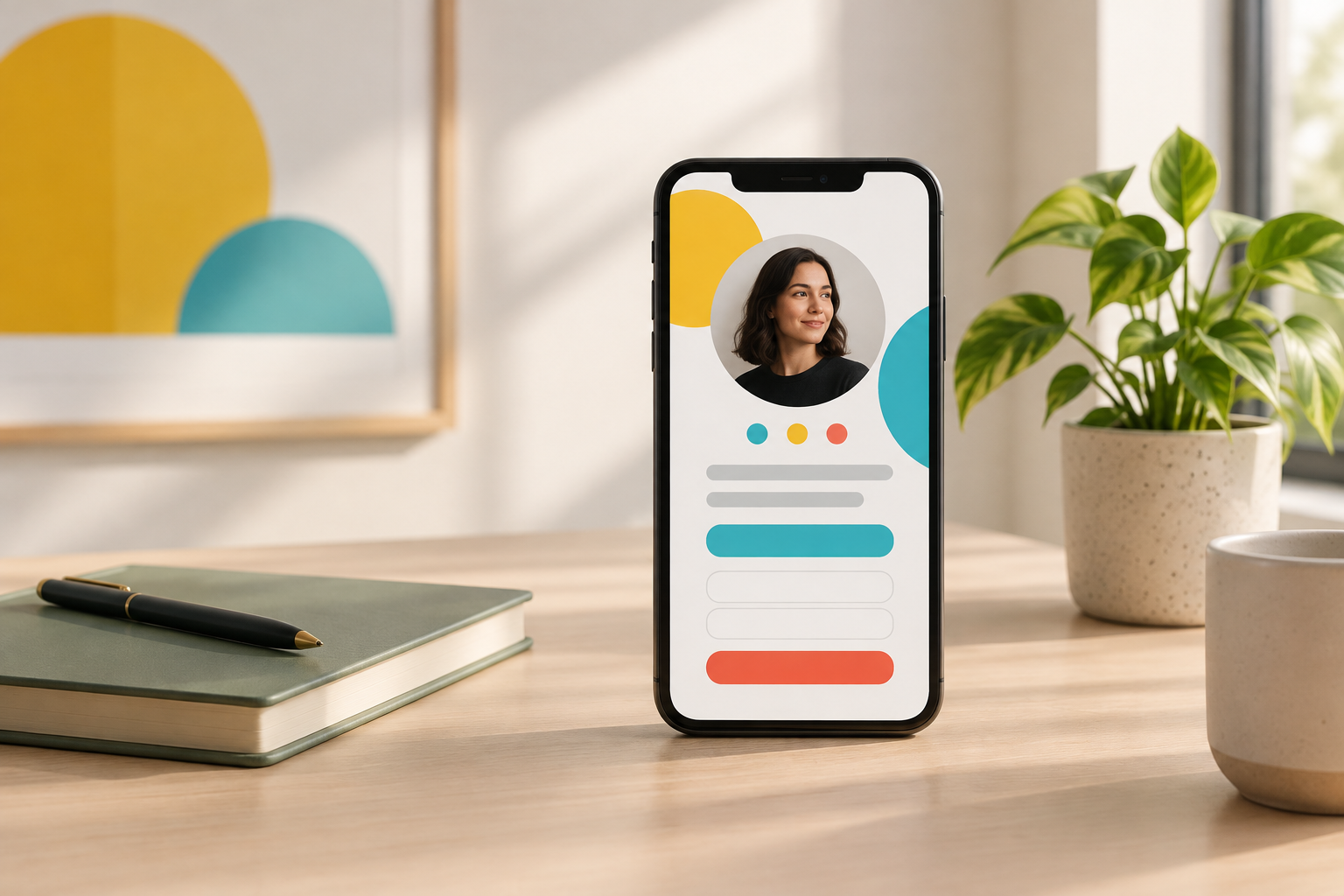
A link in bio page is a small website that gives people somewhere useful to land after finding you on social media. Instead of changing your profile link whenever you publish something, you keep one address and update what visitors find there.
The setup is straightforward. The harder part is deciding what deserves attention. A page with twelve equally prominent buttons might contain everything you do, but it asks a stranger to figure out what matters.
This guide covers how to create a link in bio page with a clear purpose, useful links, and a mobile-friendly layout. You can build the first version in one focused sitting, then improve it as you learn what visitors need.
1. Choose the main job of your page
Before picking colors or adding links, finish this sentence: When someone visits my page, I most want them to…
Your answer might be:
- Subscribe for practical advice on a specific topic.
- Book a consultation about your services.
- Try the software you’re building.
- Read your latest guide.
- Explore your work before contacting you.
You can support several actions, but choose one primary action. That decision determines your headline, button order, and how much space each item gets.
For example, a freelance designer looking for projects should probably put a portfolio or inquiry link above a personal reading list. A founder validating an idea might prioritize an interest signup over an old podcast appearance.
Match the page to the promise that brought people there
If your social post says, “Get the client onboarding checklist through my bio,” visitors should see that checklist immediately. Don’t make them search through unrelated offers.
Your overall goal matters, but so does the reason someone clicked today. Keep room near the top for the resource you’re actively promoting.
2. Pick a tool that fits your actual needs
You don’t need a full website project to publish a useful bio page. Look for a tool that makes the essentials easy:
- A page that works well on mobile.
- Simple editing when your priorities change.
- Enough design control to make the page recognizable.
- Audience signup if building a subscriber list matters to you.
- A public address you’re comfortable sharing.
Check which features are included in the plan you’re considering. Custom domains, analytics, and branding controls can vary between tools and subscription levels. Our guide to link-in-bio tools for creators can help you frame the comparison.
Hubpage brings links, audience signup, and interactive quizzes or polls onto one personal page. You can create your free Hubpage and start with the essentials. Product selling and a launch kit are planned for later; email campaigns and CRM automation aren’t available today.
If you already use a checkout, booking service, or email platform, keep those roles separate. Your bio page can direct people to those destinations without replacing them.
3. Write a short introduction that explains your value
Visitors may know you from one useful post, not from your entire body of work. Give them enough context to understand who you are and why they should stay.
Start with a recognizable photo or simple brand image, your name, and one specific sentence about your work.
A useful structure is: I help [audience] achieve [outcome] through [type of work]. You don’t have to use those exact words. The point is to be understandable.
- Freelancer: “I design clear, easy-to-manage websites for independent consultants.”
- Creator: “Practical home cooking for people who don’t want dinner to become a project.”
- Founder: “Building a simpler way for small agencies to manage client approvals.”
“Founder. Dreamer. Coffee enthusiast.” might convey personality, but it doesn’t explain what a visitor will find. Put useful context first and let your personality come through in the wording.
4. Add a small set of clearly labeled links
Start with three to five destinations. That’s a practical starting point, not a rule. Add more only when each link has a clear purpose for your audience.
A sensible order is:
- Your primary action: the most important next step.
- Your current resource: whatever you’re discussing or promoting now.
- Proof of your work: a portfolio, demo, or relevant case study.
- A contact option: a clear route for suitable inquiries.
Write button labels that describe the destination
“Click here” gives visitors no reason to click. “Learn more” leaves them guessing what they’ll learn.
Use labels such as “See my website design projects,” “Download the onboarding checklist,” or “Book a 20-minute project call.” If a resource requires an email address or payment, make that expectation clear before the visitor follows the link.
Remove duplicate routes to the same thing unless there’s a good reason to keep them. Your newsletter doesn’t need three buttons with slightly different wording.
5. Give interested visitors a way to stay connected
Someone can like your work without being ready to hire you or try your product. An audience signup gives that person another option.
Explain what they’re signing up for. “Join my list” is less helpful than “Get a monthly note on building your first digital product.” Only promise a schedule you can maintain.
Keep the form focused. Ask for the information you actually need, explain how you’ll use it, and provide appropriate privacy information. Don’t treat a signup for one resource as blanket permission for unrelated marketing.
Also check what happens after submission. Capturing an email address is not the same as sending a welcome message or delivering a file. If you promise email delivery, you need a separate process or email service that actually handles it.
For service businesses, our overview of Hubpage for professionals offers more context on using a personal page for lead capture.
6. Design for a phone, not your desktop monitor
Your page will often be opened inside a social app on a small screen. Build for that experience first.
- Use readable contrast. Avoid pale text on pale backgrounds.
- Keep labels short. A button shouldn’t read like a paragraph.
- Leave space between actions. Make it easy to tap the intended link.
- Limit decorative elements. Images should help visitors understand your work.
- Make the first screen useful. Don’t let a large banner push every action out of view.
Use a consistent visual style, but don’t confuse branding with decoration. One accent color, a recognizable image, and clear writing can be enough. Browse these link-in-bio examples for layout ideas, then adapt the structure to your own priorities.
7. Publish, test, and add the URL to your profiles
Open the published page on your phone before sharing it. Test the public version, not just the editor preview.
- Tap every link and confirm the destination.
- Submit the signup form and check that it works.
- Check whether downloads and booking pages work without unexpected logins.
- Look for clipped text, awkward wrapping, and slow-loading images.
- Check the page inside a social app’s browser.
Then copy the public URL into the website or link field on your social profiles. Where the platform allows it, add a short instruction near the link, such as “Free onboarding checklist below.” Tell people what they’ll get rather than simply announcing that a link exists.
8. Keep the page aligned with your current work
Review your page whenever you launch something, change services, or promote a new resource. Remove expired offers and move older material down.
If your tool provides click data, use it as a clue rather than a verdict. Low clicks might reflect an unclear label, poor placement, or an audience that came for something else. Change one element at a time so you can better understand the result.
The best first version is usually smaller than you expect: a clear introduction, one priority action, a few useful destinations, and an optional way to stay connected. Your page is doing its job when a new visitor can quickly understand what you offer and choose a sensible next step.