Website & Online Presence
What to Put on Your Link-in-Bio Page So Visitors Actually Click
Practical link in bio ideas that help visitors understand what you do, find what they came for, and take the next step.
By Hubpage Editorial Team · October 29, 2026 · 6 min read
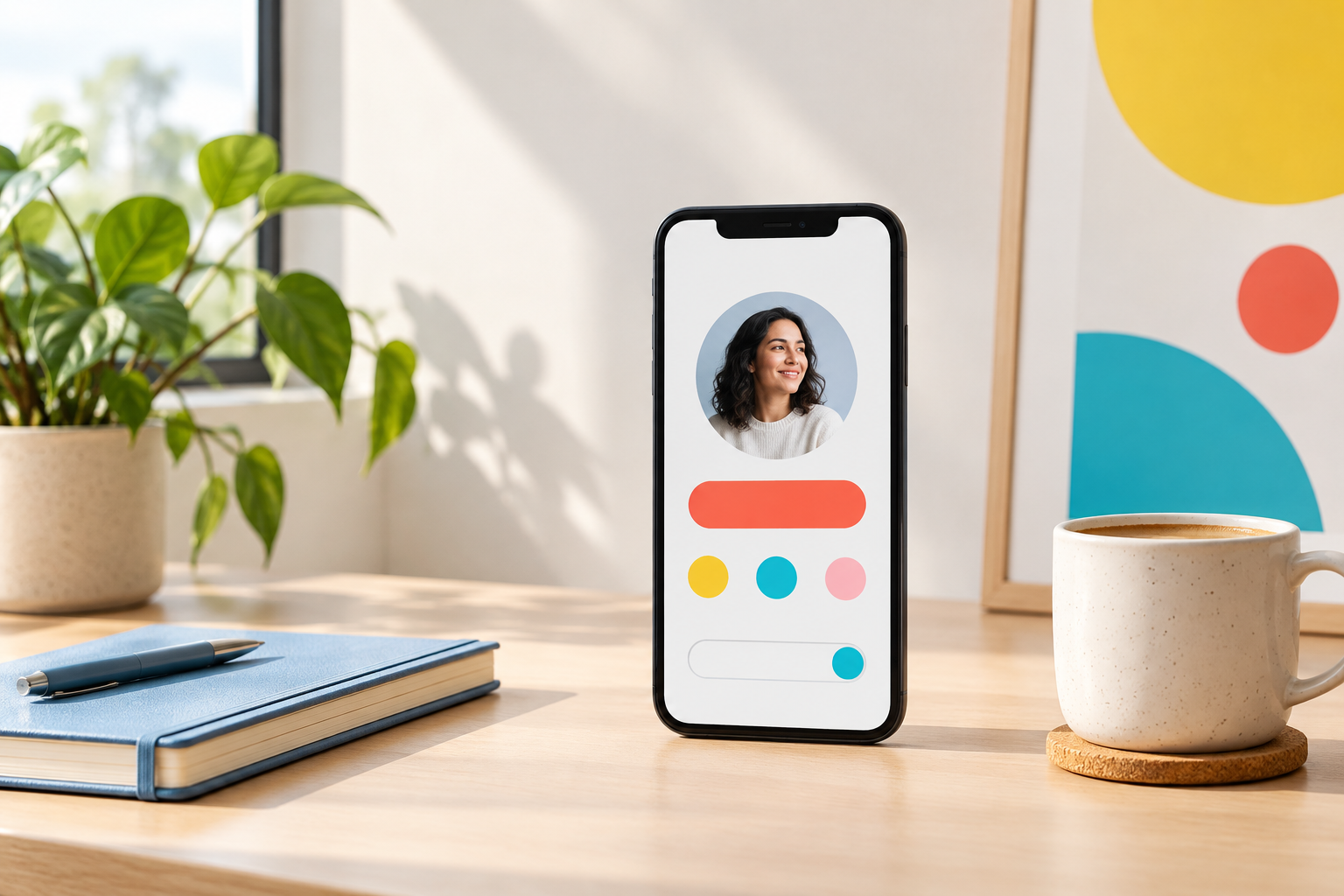
Someone watches your tutorial, taps your profile, and opens your bio link. They’re looking for the template you mentioned. Instead, they find eleven buttons labeled “Resources,” “My work,” “Latest,” and “More.” Now they have to investigate.
Your link-in-bio page should remove that work. It needs to answer three questions quickly: Am I in the right place? Where is the thing I came for? What else here is useful to me?
The best link in bio ideas aren’t clever decorations. They’re small decisions about what to include, what to call it, and where to place it.
1. Start with a specific one-line introduction
A profile photo and your name establish continuity with your social account. A short introduction explains why someone should keep looking.
Skip the full biography. Tell visitors who you help and what they can find here.
- Freelance designer: “Brand design for independent food businesses. See my work or ask about a project.”
- Creator: “Simple meal prep for busy households. Start with the free Sunday checklist.”
- Product builder: “I build practical tools for solo consultants. Explore the current tools and what’s coming next.”
These introductions do more than “Designer, creator, coffee enthusiast.” Personality is welcome, but it shouldn’t replace an explanation of what you offer.
2. Give the page one primary job
Before adding links, finish this sentence: “The most useful next step for a visitor right now is to ______.”
Your answer might be downloading a resource, exploring your work, joining a newsletter, or checking out a product on an external store. Make that action the first prominent link.
This doesn’t mean every visitor must do the same thing. It means you provide a clear starting point instead of presenting every destination as equally important.
Match that first link to your recent content
If your latest video promises a budgeting worksheet, the worksheet belongs near the top. Don’t make people scroll past your podcast, portfolio, and contact details to find it.
A useful first-button label would be “Get the budgeting worksheet from my video,” not “Free stuff.” Keep the wording consistent with what you said in the post.
When choosing among link-in-bio tools for creators, consider how easily you can update this priority. A page you can maintain quickly is more useful than an elaborate one you rarely touch.
3. Write button text that explains the destination
A button is a promise about what happens next. Vague labels force visitors to guess; specific labels help them decide.
- Instead of “Newsletter”, try “Get my weekly freelance pricing tips.”
- Instead of “Portfolio”, try “See my brand identity projects.”
- Instead of “Shop”, try “Browse my Notion planning templates.”
- Instead of “Contact”, try “Ask about a website project.”
Keep labels short enough to scan on a phone. You don’t need to squeeze the entire sales pitch into a button.
Where your layout allows supporting text, use it to clarify the commitment: “Free PDF,” “Three-minute quiz,” or “View packages and starting prices.” Only include descriptions that accurately match the destination.
4. Include an audience signup with a real reason to join
Not every visitor is ready to buy or hire you. An audience signup gives interested people another way to stay connected.
But “Join my list” doesn’t explain the value. Say what subscribers will receive and, if you have a consistent schedule, how often.
For example: “One practical photography exercise every Friday” is a clearer offer than “Subscribe for updates.” If you’re still preparing to launch, try “Get notified when the client onboarding kit is ready.”
Ask only for information you need. An email address may be enough; adding several questions can turn a simple signup into work.
Hubpage supports audience signup on your personal page. That’s distinct from sending email campaigns: you’ll need a separate email service for newsletters and automated sequences. Make sure your delivery process is ready before promising an immediate resource or welcome email.
5. Add enough proof to make the next click feel worthwhile
A visitor considering your services needs more than a booking link. They need a reason to believe you’re a good fit.
Choose one relevant proof destination rather than linking your entire archive:
- A case study that explains the problem, your approach, and the outcome.
- A portfolio organized around the work you want to get hired for.
- A product walkthrough showing what’s included.
- A sample lesson, chapter, or template preview.
Use evidence you can substantiate. A concrete description such as “See the booking website I built for a local studio” is more useful than an unsupported claim about being the best.
For service businesses, put this proof close to the inquiry link. Someone exploring Hubpage for professionals can use that sequence to connect an introduction, relevant work, and a clear way to ask about services.
6. Use a quiz or poll when it helps visitors choose
Interactive content earns its place when it solves a small problem. It shouldn’t be there just to make the page look busy.
A fitness creator might offer a quiz called “Which beginner workout approach fits your schedule?” A product builder could ask, “Which admin task should I tackle next?” with a short poll.
Hubpage supports interactive quizzes and polls. Keep the prompt focused, explain what participants will get from taking part, and avoid asking for unnecessary personal information.
If the poll only benefits you, be upfront: “Help me choose next week’s tutorial.” That’s a perfectly reasonable invitation without pretending it’s a personalized recommendation.
7. Arrange links around visitor priorities
There’s no universal perfect number of links. Start with a compact set, then require every extra link to justify its space.
For a creator with a free resource and a paid product, this order could work:
- Current promise: Get the resource mentioned in recent content.
- Ongoing value: Join the newsletter or launch list.
- Deeper interest: Preview the product or explore useful work.
- Commercial next step: Visit the external store or inquire about services.
- Secondary destinations: Other channels and contact details.
A freelancer seeking projects might move their portfolio and inquiry link above the signup. The order should reflect your goal and the visitors you attract.
Use link-in-bio examples to compare layouts, but borrow the hierarchy rather than copying someone else’s link collection.
8. Remove anything that creates an unnecessary detour
Audit the page on your phone. Open every link and check that it leads exactly where the label suggests.
- Remove expired event registrations and outdated launch announcements.
- Replace generic homepages with the specific resource or product page.
- Avoid sending people back to the platform they just came from as your main action.
- Check that important labels aren’t cut off and buttons are easy to tap.
- Keep colors, spacing, and backgrounds readable rather than decorative.
Then ask someone unfamiliar with your work: “What would you click first, and what would you expect to find?” Their answer can reveal confusing wording faster than another design revision.
9. Review clicks alongside the actions that matter
If your tools provide click data, use it to identify which destinations attract attention. Then check what happens afterward using the destination’s own reporting where available.
A popular resource link doesn’t automatically mean people are signing up. A less-clicked inquiry link may still produce a relevant project conversation. Clicks are a useful signal, not the whole result.
Change one meaningful element at a time: the first link, its wording, or its position. Note when you changed it and what content was sending visitors to the page. Different traffic can make simple before-and-after comparisons misleading.
Your page is working when visitors can recognize what’s relevant and take the next step without guessing. Keep the promise from your content, label the choices clearly, and give everything else a reason to stay.